
Getting a signed macOS DMG release working with free GitHub Actions
TabDance is now good enough to use. Command-K keeps the command you’re editing, copying survives a terminal redraw, and each tab keeps its shell when you switch workspaces. The next job was making it something another person could download without installing Xcode.
The recent release commits add a macOS build on GitHub Actions, a drag-to-Applications DMG, a release upload, and Developer ID signing. The most revealing failure came after the certificate imported successfully: codesign still said no identity found. The fix adds the temporary signing keychain to macOS’s search list.
The standard macOS runners are free for public repositories like TabDance. Apple’s signing identity comes through the Apple Developer Program, whose usual membership fee is $99 USD per year. The free part here is the build machine.
The app worth packaging
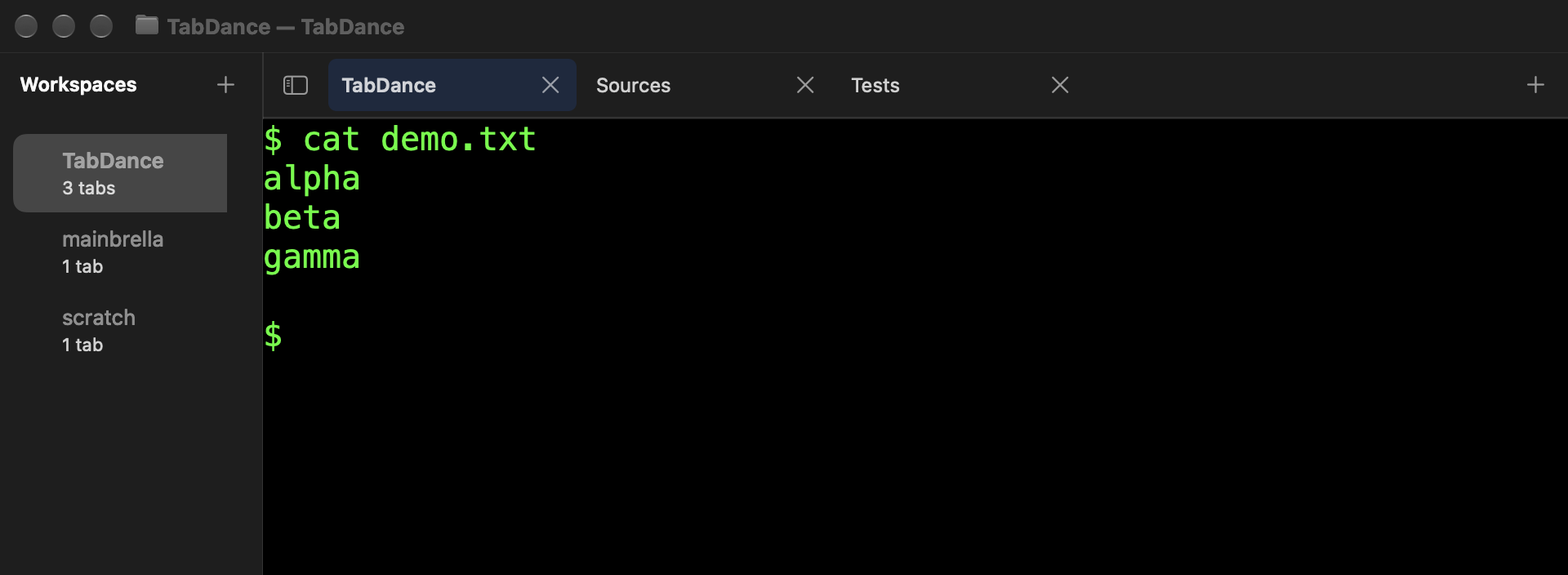
In the first article, my Command-K, cat file.txt, Command-A copying habit led from cmux and Rio to studying Apple Terminal’s executable. TabDance was a small AppKit prototype. It now has multiple windows, workspaces, live tabs, keyboard navigation, and file drops. I like how little ceremony there is: a workspace for a project, a few shells, and the clearing and copying behavior I wanted.
The app starts your account’s login shell, so your usual shell setup comes with it. Each shell runs through a pseudoterminal (PTY), the connection through which terminal programs exchange input and output. SwiftTerm 1.19.0 supplies the terminal emulator and rendering; TabDance adds the AppKit workspace UI and its own clearing and copying behavior.
Build on the Mac runner
The workflow runs on pushes to main, version tags, pull requests, and manual dispatches. Its build job uses macos-latest, checks that uname -m returns arm64, then tests the app before producing a Release build. The downloadable DMG is for Apple silicon; the local build script can also produce a universal app for Intel Macs.
xcodebuild -project TabDance.xcodeproj -scheme TabDance \
  -destination 'platform=macOS,arch=arm64' \
  -derivedDataPath .build/xcode -skipPackagePluginValidation \
  ARCHS=arm64 ONLY_ACTIVE_ARCH=YES test

./build-app.sh ARCHS=arm64 ONLY_ACTIVE_ARCH=NO
The Xcode project is checked in, so the runner doesn’t need to install XcodeGen. Swift Package Manager fetches the pinned SwiftTerm dependency. -skipPackagePluginValidation avoids an interactive approval for that dependency’s build information plugin. The build script copies the finished bundle into dist/TabDance.app; later steps all use that path.
The first CI run exposed a test assumption. The PTY test expected SwiftTerm to have reaped its child process by the time the termination callback fired. On the runner, waitpid returned the child’s PID instead of the expected -1. The fix checks the reported exit code and makes cleanup the test’s responsibility:
Assume cleanup already happened
XCTAssertEqual(
    waitpid(pid, &status, WNOHANG), -1
)
XCTAssertEqual(errno, ECHILD)
Check the process result
XCTAssertEqual(delegate.exitCode, 0)
// Terminate and reap in defer.
The test still checks interactive input, resizing, and terminal output. It stops demanding that a separate cleanup operation finish at a particular instant. That’s a useful distinction to make before treating a CI failure as an app failure.
Make a DMG with an Applications shortcut
A DMG packages a directory into a mountable disk image. For TabDance, that directory contains the app and a symlink to /Applications. Finder resolves the link, giving the user the familiar destination to drag the app onto. This is the packaging portion of the script:
staging="$RUNNER_TEMP/tabdance-dmg"
mkdir -p "$staging"
ditto dist/TabDance.app "$staging/TabDance.app"
ln -s /Applications "$staging/Applications"
hdiutil create -volname TabDance -srcfolder "$staging" \
  -ov -format UDZO dist/TabDance-macos-arm64.dmg
ditto copies the app bundle, and UDZO produces a compressed, read-only image. The full script clears old staging output before this excerpt. Once signing is enabled, it signs the app before copying it into the image, then signs the finished DMG too.
The Mac job uploads that file so another job can use it:
- uses: actions/upload-artifact@v7
  with:
    name: TabDance-macos-arm64
    path: dist/TabDance-macos-arm64.dmg
    if-no-files-found: error
    retention-days: 7
The Node 24 update moves the helper actions to checkout@v7, upload-artifact@v7, and download-artifact@v8. Those versions belong to the CI helpers; the app itself is still Swift and AppKit.
An Actions artifact needs a release upload
At this point, the DMG lives under a workflow run and expires after seven days. I want a download on the repository’s Releases page. GitHub’s automatic source ZIP and tarball don’t contain the compiled app, and uploading an Actions artifact doesn’t attach it to a release.
A second job downloads the same DMG and publishes it. This job can run on Ubuntu because it only hashes and uploads a file. It waits for the Mac build, skips pull requests, and requests permission to write repository contents:
publish:
  if: github.event_name != 'pull_request'
  needs: build
  runs-on: ubuntu-latest
  permissions:
    contents: write
  steps:
    - uses: actions/download-artifact@v8
      with:
        name: TabDance-macos-arm64
The upload step sets GH_TOKEN to ${{ github.token }} and GH_REPO to ${{ github.repository }}. The workflow’s built-in token handles ordinary release uploads with contents: write, and it works for the successful release here. There is a catch when creating a release for an older commit.
One early upload returned HTTP 403: Resource not accessible by integration. A later run hit the same error even though its job log explicitly showed Contents: write. By then, another workflow fix had reached main while the older build was running.
That matches a restriction in GitHub’s release API: if the target commit’s files under .github/workflows/ differ from the current default branch, creating the release requires permission to write workflows. The built-in GITHUB_TOKEN can’t be granted that permission. A release job can therefore fail after a newer push changes the workflow. For publishing arbitrary commits, a suitably authorized GitHub App or fine-grained token can supply both Contents and Workflows write permissions.
The original publishing condition required a version tag. The next change publishes successful main pushes and manual runs too, using the first eight characters of the built commit as the release tag. The core upload looks like this, with release-note handling omitted:
TAG_NAME="${COMMIT_SHA:0:8}"
sha256sum TabDance-macos-arm64.dmg > SHA256SUMS
if gh release view "$TAG_NAME" >/dev/null 2>&1; then
  gh release upload "$TAG_NAME" \
    TabDance-macos-arm64.dmg SHA256SUMS --clobber
else
  gh release create "$TAG_NAME" \
    TabDance-macos-arm64.dmg SHA256SUMS \
    --title "$TAG_NAME" --target "$COMMIT_SHA" --generate-notes
fi
A rerun updates that commit’s release and replaces its assets. --target ties a newly created tag to the commit that was built. The app also embeds its short Git SHA in GitSHA.txt, and About TabDance displays it, so the installed binary can be matched back to source.
The 47710798 release shows the result after the signing fixes below. Its assets include the DMG and checksum file alongside GitHub’s source archives. The release notes state that it is Developer ID signed and unnotarized.

Give the runner a Developer ID identity
The Xcode project sets CODE_SIGN_IDENTITY to -, producing an ad-hoc signature. That can pass a signature-integrity check, but it doesn’t identify an Apple-registered developer. For distribution outside the Mac App Store, Developer ID Application is the certificate type this workflow uses.
Create a Developer ID Application certificate through Xcode or your Apple developer account. Export it together with its private key from Keychain Access as a password-protected .p12 archive. Add these two secrets under the repository’s Settings → Secrets and variables → Actions:
| Secret | Value |
|---|---|
MACOS_DEVELOPER_ | The base64-encoded .p12 archive, containing the certificate and private key. |
MACOS_DEVELOPER_ | The password chosen when exporting that archive. |
On a Mac, this copies the encoded archive so it can be pasted into the first secret:
base64 -i DeveloperID.p12 | pbcopyThe workflow decodes the archive into a temporary file, creates and unlocks a temporary keychain, then imports the identity there. security set-key-partition-list grants Apple signing tools access to its private key without a GUI prompt. It checks for exactly one valid Developer ID Application identity and passes that identity’s SHA-1 hash to the packaging script.
That setup exposed the awkward part. In the first complete signing attempt, the import step succeeded, but the next step failed with:
…: no identity foundThe next fix saves the runner’s user keychain search list and adds the temporary keychain to it. Finding an identity by querying a particular keychain hadn’t established that codesign could use it. After parsing the saved paths into an array, the workflow adds the new path:
keychain_search_list+=("$keychain_path")
security list-keychains -d user -s "${keychain_search_list[@]}"
Cleanup restores the original search list and deletes the temporary keychain under if: always(). The follow-up fix handles unset variables and an empty original search list explicitly. Cleanup runs with set -u too; it has to survive the case where setup failed before every variable or array element existed.
With the identity available, the packaging script applies a Developer ID signature to the app with the hardened runtime and a secure timestamp, then verifies it:
codesign --force --options runtime --timestamp \
  --sign "$MACOS_SIGNING_IDENTITY" \
  --keychain "$MACOS_SIGNING_KEYCHAIN" dist/TabDance.app
codesign --verify --deep --strict --verbose=2 dist/TabDance.app
The script signs and verifies the DMG after creating it. Pull requests keep the ad-hoc build path and don’t import the certificate. Published builds require the signing secrets, and the publish job refuses an artifact whose reported signing status isn’t Developer ID signed.
The run after both keychain fixes completed the build, signing, cleanup, and release upload. The downloadable 47710798 build is Developer ID signed. The next optional step is notarization.
Signing and notarization have different credentials
Developer ID signing identifies the developer and protects the signed contents. Notarization submits that signed software to Apple for automated checks. Stapling attaches the resulting ticket to the app or disk image so Gatekeeper can find it even without a network connection. Apple describes the command-line process in its notarization workflow guide.
TabDance makes notarization optional. To enable it, add all three App Store Connect API key secrets:
| Secret | Value |
|---|---|
APPLE_NOTARY_ | The contents of the API key’s .p8 file. |
APPLE_NOTARY_ | The API key ID. |
APPLE_NOTARY_ | The issuer UUID for the App Store Connect team. |
The .p12 supplies the signing identity; the .p8 authenticates requests to Apple’s notary service. This script expects base64 for the p12 secret and the file’s text contents for the p8 secret. Setting the p8 secret turns notarization on and requires the other two values. Leaving it unset skips notarization.
The script first ZIPs the signed app, submits it with notarytool --wait, then staples and validates the app’s ticket. It copies that stapled app into the DMG, signs the image, submits the DMG, and staples that ticket too. The final submission uses these commands:
xcrun notarytool submit "$dmg" \
  --key "$notary_key" --key-id "$APPLE_NOTARY_KEY_ID" \
  --issuer "$APPLE_NOTARY_ISSUER_ID" --wait --timeout 30m
xcrun stapler staple "$dmg"
xcrun stapler validate "$dmg"
spctl --assess --type open \
  --context context:primary-signature --verbose=2 "$dmg"
Those are separate checks: the signature, the stapled ticket, and Gatekeeper’s assessment. Release notes receive the packaging script’s signing and notarization results. A Developer ID signed build can still be unnotarized; that state is reported explicitly, with Apple’s first-launch instructions. The notarization path is implemented but hasn’t been demonstrated by the releases linked here.
A tab switch keeps the shell
The release work is there so someone else can try the parts of TabDance I care about. Start a server in one tab, open another for edits, then switch workspaces. The server should keep running. Returning should put you back in the tab you last selected in that workspace.
Each tab owns a live session, identified by a UUID. Switching tabs changes which terminal view is visible and has keyboard focus; the other shells keep running. Dragging a tab changes its position without changing its session. Each workspace remembers its selected tab, so switching back returns there.
There was a smaller continuity problem in the UI itself. A background session can update its title or working directory while you’re clicking a tab. The original refresh rebuilt every tab view. If that happened between mouse-down and mouse-up, the object holding the click disappeared.
The fix compares the ordered tab IDs. If they haven’t changed, it updates the existing labels and styles in place. Background updates also leave the tab bar’s scroll position alone. The regression test reproduces the mouse-down, metadata update, mouse-up sequence.
You can drag workspaces into a new order too. Tabs stay within their workspace and window; an insertion marker shows where they’ll land. Below 600 points of window width, the sidebar collapses and a workspace menu remains available.
Closing a tab also has to remove its terminal view. Stopping the shell while leaving the view attached could put the visible terminal out of sync with the selected workspace. The closing fix removes both; its regression case closes successive workspaces that share a directory.
Command-K keeps the line you’re editing
If a prompt and unfinished command wrap across two rows, clearing the old output should keep both rows and leave the cursor at the same place in the command.

The clear operation walks backward and forward from the cursor’s row using the buffer’s wrapping flags. That identifies the whole logical line, including a continuation below the cursor. It moves those rows to the top, erases the rows beneath them, removes scrollback, and restores the cursor relative to the retained line.
It does this inside the terminal emulator. The scroll and erase sequences go directly into SwiftTerm’s parser; no Control-L is written to the shell. That keeps the result independent of how the foreground program handles Control-L. Moving existing rows also preserves their colors and metadata rather than reconstructing the command as plain text.
Old output also disappears from Select All. Clearing an alternate screen leaves the normal buffer alone and preserves bracketed-paste mode, which lets a program recognize pasted text.
Copy remembers the selection
Terminal programs redraw. Select hello, let the program erase that row, and Copy still ought to give you hello. TabDance stores a text snapshot when a selection is made and copies from that snapshot before falling back to the current cells:
public var copyText: String? {
    selectedTextSnapshot ?? getSelection()
}
Selecting nonempty text also copies it to the clipboard automatically. A redraw can erase the selected cells while the saved string remains:
| Moment | Screen text | Copy returns |
|---|---|---|
| After selecting | hello | hello |
| After erase-line | Empty | hello |
Typing or pasting, a new mouse-down, or Command-K discards the snapshot. When a program asks for the cursor position, the terminal emulator replies through the PTY without any user action. Treating that reply as typing would discard the selection and confuse the activity indicator. TabDance keeps the two paths separate: user input clears the snapshot and notifies the monitor; parser replies go straight to the process.
The next tab starts where you are
After cd, Command-T should open a shell in that directory—even if you press it before the next background poll. A shell can announce its current directory with OSC 7, an escape sequence carrying a file URL. TabDance also polls the directory through macOS’s libproc interface, so shells that don’t send OSC 7 still work.
Polling alone leaves a timing gap. Immediately before creating a tab or workspace, TabDance queries the selected shell’s current directory again. The new shell needn’t wait for its label to catch up.
File drops insert paths and let you finish the command. Drop local files or folders onto terminal content, or onto a tab label to select and focus that tab. TabDance inserts absolute paths with shell-special characters escaped, separated by spaces and followed by a space. It doesn’t press Enter.
Drop annual report.txt onto a pending cat command:
cat /tmp/annual\ report.txt ▏The cursor is still waiting. You can add another path or press Return.
If the receiving program enables bracketed paste, the drop is wrapped in paste-start and paste-end sequences. Filenames containing control characters are rejected.
A running Codex process isn’t always busy
A workspace can have a Codex process open while nothing is happening. Showing a spinner for the process’s entire lifetime would make the indicator useless.
The indicator follows task events in Codex’s local session transcript. TabDance finds the Codex process under each shell, then matches the transcript using its working directory and process start time. It reads new JSONL events—JSON objects, one per line—as they’re appended. Submitting a prompt can start the indicator; task-start, completion, and abort events then update it. Completion events are checked against the submission time to filter out older turns.
Control-C clears the indicator immediately and suppresses late events until the next submission. Newlines inside bracketed paste don’t count as submitted prompts. Other commands don’t get this activity tracking, and changes to Codex’s transcript format may require an update.
Try it against your own habits
For an Apple silicon Mac running macOS 13 or later, download TabDance-macos-arm64.dmg from the Releases page. Open the DMG and drag TabDance to Applications. The release above is Developer ID signed but unnotarized. If macOS blocks first launch, Apple documents approval under System Settings → Privacy & Security.
Building from source is still an option, including for Intel Macs. The README covers the Xcode setup and build commands.
These are the shortcuts to start with. The README has the full list, including numbered tab selection and keyboard reordering.
| Keys | Action |
|---|---|
| ⌘T | New tab in the current directory |
| ⌘⇧N | New workspace in the current directory |
| ⌘⇧[ / ⌘⇧] | Previous / next tab |
| ⌥⌘↑ / ⌥⌘↓ | Previous / next workspace |
| ⌘K | Clear prior output; keep the current logical line |
| ⌘B | Toggle the workspace sidebar |
Reopening TabDance restores the primary window’s workspace order, tab directories and titles, and selections. It starts fresh shells in those directories; running processes and terminal output aren’t restored. Held keys use macOS’s repeat delay and rate.
There are no profiles, search, or preferences yet. The terminal appearance is fixed: Menlo at 20 points, green text on black, and a fixed ANSI palette. Exact copied-newline behavior and typing latency haven’t been measured against Apple Terminal.
Command-W closes a tab and Command-Q quits without prompting. Explicitly closing a window asks for confirmation when sessions are active.
I’m still starting with the same boring file:
printf 'alpha\nbeta\ngamma\n' > /tmp/tabdance-selection.txt
# Press Command-K, then run:
cat /tmp/tabdance-selection.txt
# Press Command-A, Command-C, and inspect the pasted text.
Then try an unfinished wrapped command, a selection erased by a redraw, and a quick cd followed by Command-T. They’re small enough to tell me exactly where your habits and TabDance still disagree.