
What a difference search images make
Look at PrintsCharming beside the other photo-printing apps in this search. A phone, a printer, and a few photos on a table fill its result. The apps next to it have the familiar three narrow screenshots, complete with phone frames and little headlines. PrintsCharming gets one whole scene.
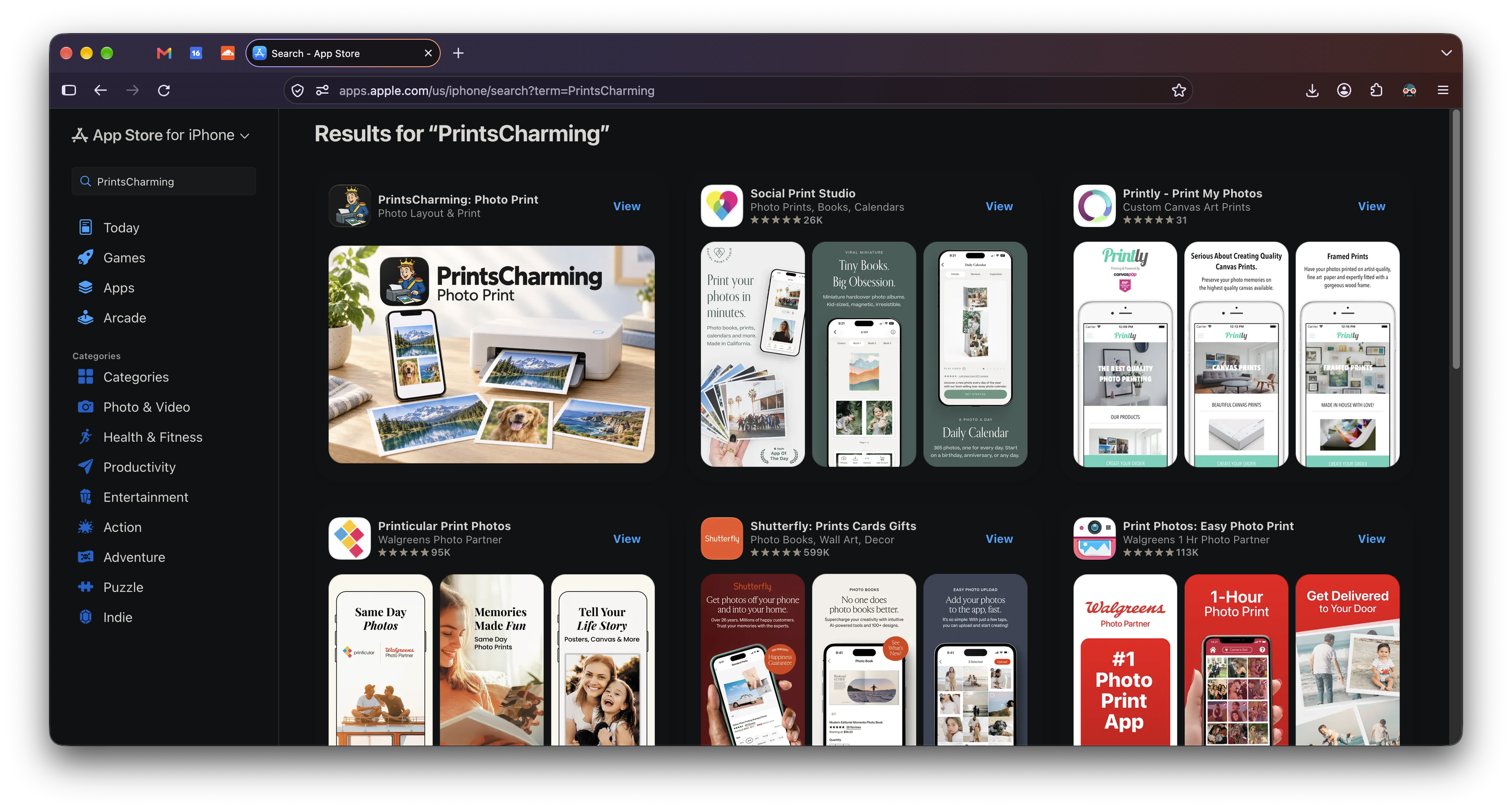
That scene does a useful job before anyone opens the product page. You can see the idea: get photos off your phone and onto paper. There's room for the app's name and character, too. The neighboring screenshots have more detail, but you have to start reading them.
What Apple added on October 5
Apple's October 5, 2026 App Store Connect update introduced creative assets for product page headers, search results, and in-app events. Its new Asset Library puts those assets together with previews and screenshots, with live previews of how they'll appear on the product page and in search.
Search is the placement that caught my attention. An app gets a chance to establish a recognizable look while someone is still choosing which result to open. You can compose an image for that moment instead of asking three miniature screens to explain everything.
Cash Every Week takes a much simpler approach than PrintsCharming. Its gold C and receipt-filled green pockets occupy almost the whole image. Beside Ibotta's pink screenshot sequence, it's easy to pick out. There isn't even a headline to read.
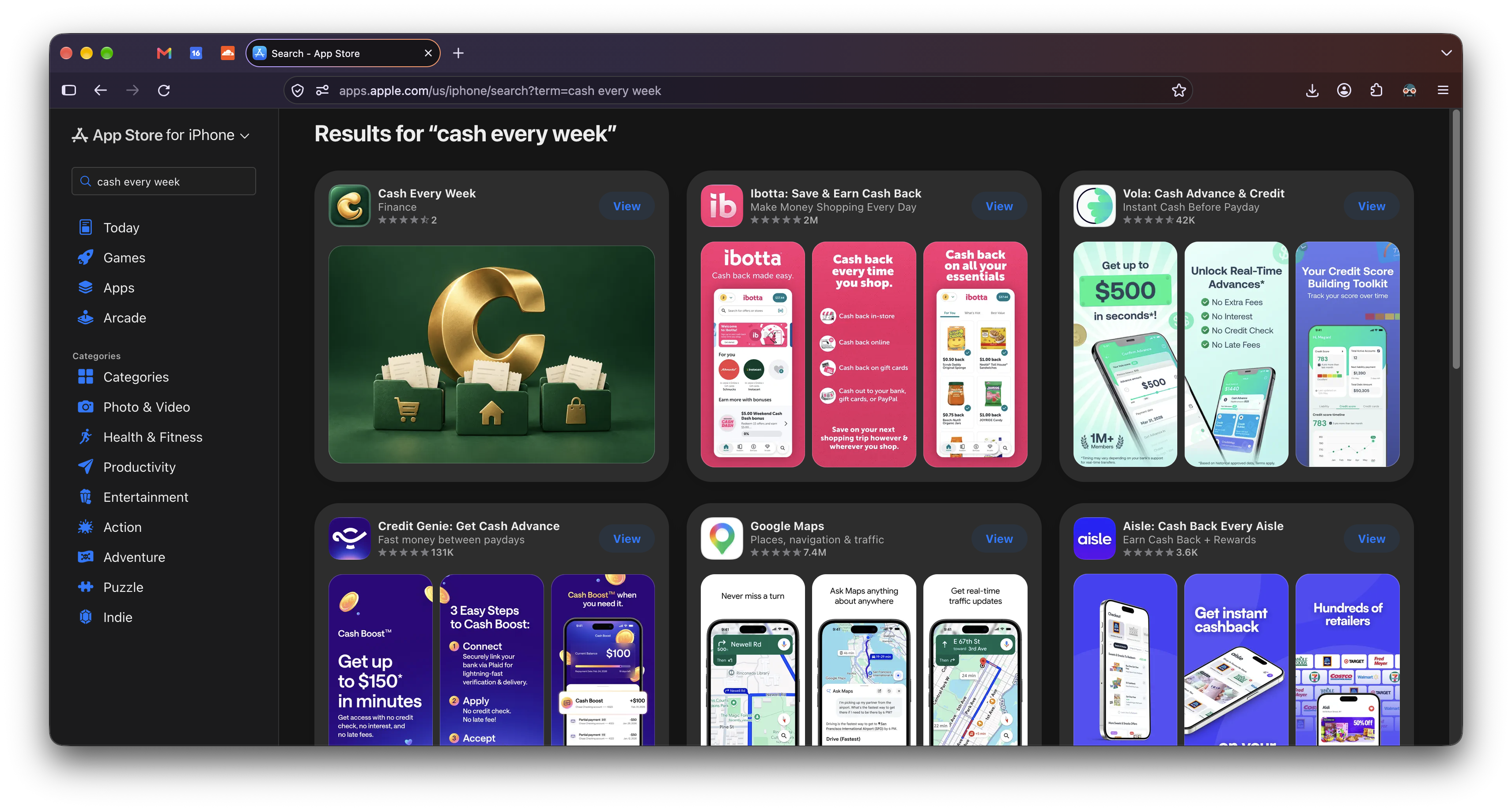
These captures are from name searches on the App Store's website. I haven't measured whether the artwork changes downloads or ranking, but the difference in presentation is enough to make me want these assets on my listings. A small app can have a clear visual identity beside a much more established one. Open any image to see the full search page.
Making the images inside DeployerCoaster
The images were made through DeployerCoaster Studio, my desktop app for managing apps and deployments. The October 15 image-generation change added a brief and a “Generate and upload search” button to an empty search placement. The selected app, version, and language are already known, so I don't have to paste that context into a separate conversation.
Studio starts codex app-server as a local process and talks to it over stdin and stdout using newline-delimited JSON-RPC messages. This is the Codex App Server protocol. Studio checks the account and can open the ChatGPT browser sign-in flow; image jobs reuse that login. It then uses thread/start and turn/start to send the work, while streaming activity and assistant messages back into its UI.
The image request invokes the imagegen skill and asks for original artwork. It includes the brief, app name, bundle ID, and the selected locale's existing description, along with an output path and exact dimensions. Studio uses these two PNG sizes:
| Placement | PNG dimensions |
|---|---|
| Search results | 1920 × 1280 px |
| Product page header | 3840 × 1646 px |
Those are the sizes this workflow chooses from Apple's supported image specifications. Apple also accepts larger 3:2 search images and JPEGs, and requires images without transparency. A header needs its own composition; stretching the search image into that much wider space would be a lousy shortcut.
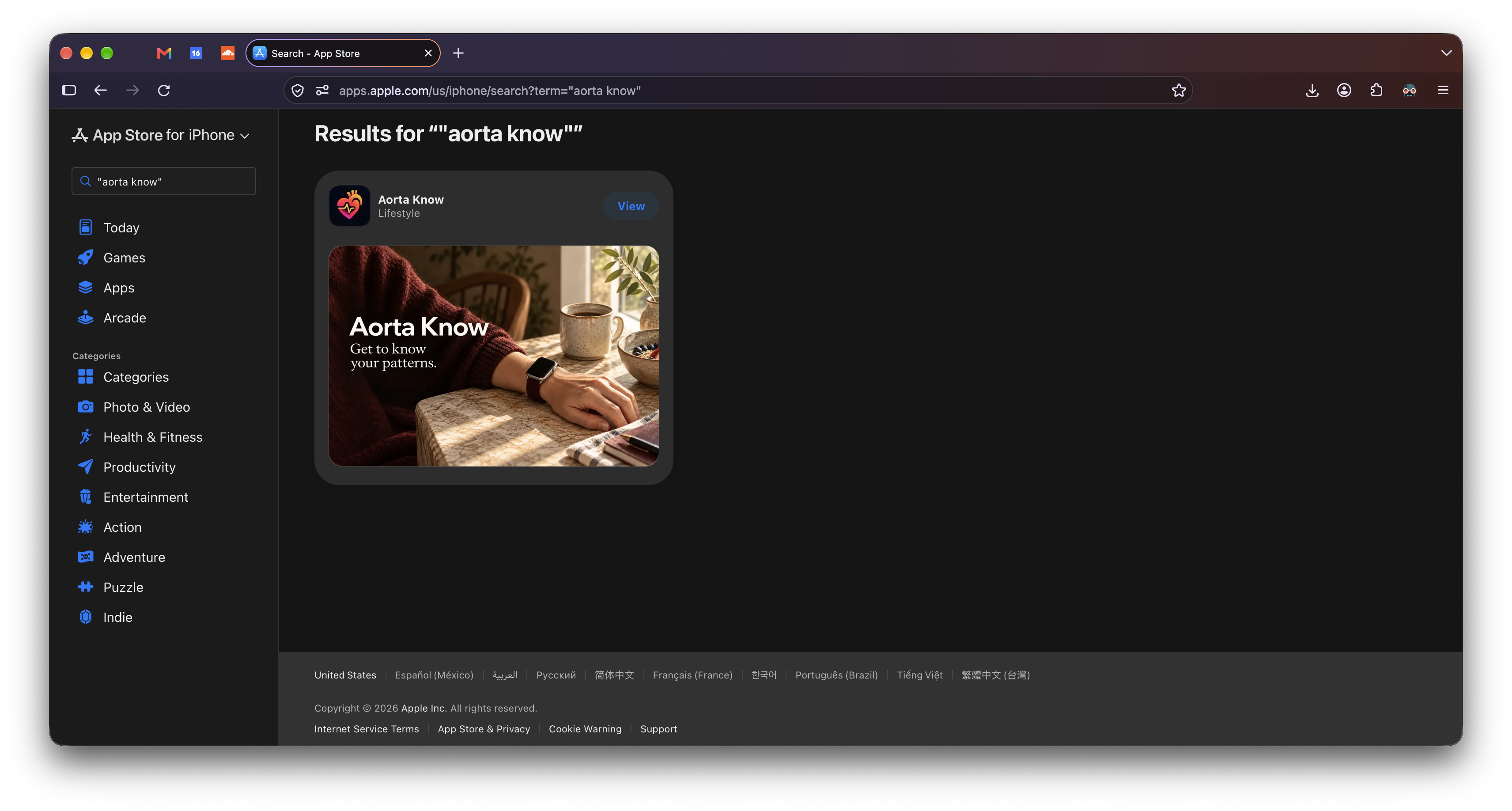
Aorta Know shows why the brief matters as much as the plumbing. Its search artwork has a watch, a cup of coffee, and warm morning light, with “Get to know your patterns.” It's a quieter introduction than either the photo printer or the gold C. The same upload workflow can carry all three without forcing them into the same visual template.
Getting the PNG onto the right listing
Making a file is only part of the job. The request also tells Codex to use Parsequerade's Rust upload example to put that PNG in the app's Asset Library and attach it to the selected version localization. Search artwork uses Apple's APP_STORE_SEARCH_RESULTS_ASSET placement type; headers use PRODUCT_PAGE_HEADER_ASSET.
This has moved on since the facade article and the Studio migration post, which described the hosted service and its missing writes. Studio now uses Parsequerade's local Rust SDK. The SDK keeps the flat resource interface and handles Apple's signing and resource lookups locally, calling App Store Connect directly. The image upload doesn't go through the hosted Worker.
The uploader has several jobs beyond sending the bytes:
- Validate the PNG, resolve the exact app/version/locale, and check for an existing placement. Read Apple's live asset catalog to find a compatible placement group.
- Reserve an image in the app's Asset Library, transfer the byte ranges Apple requests, then mark the upload complete.
- Create the placement linking that image to the selected localization and placement type.
- Read the placement back and write a receipt containing the app, version, locale, image ID, and placement ID.
Studio checks the PNG's format and dimensions and matches that receipt to the original request. It then reloads the media and checks that the image and placement appear there before displaying “Image uploaded.” A cheerful final message from the agent doesn't establish that the listing changed.
The uploader also saves a checkpoint before each Apple write. If a reply disappears, the next attempt keeps the same PNG and checkpoint and checks what Apple accepted. It won't blindly reserve another image or create another placement. An uncertain reservation without an image ID needs manual reconciliation; a retry can't wish that missing ID into existence. Existing artwork is preserved, and this generation flow doesn't submit an app release. Uploading and attaching an asset are separate from Apple's review and its appearance in the store.
What I like about the result is how much an app can say before the product page opens. PrintsCharming shows photos becoming prints. Aorta Know suggests a daily routine. Cash Every Week makes its gold C hard to miss. Studio and Parsequerade handle getting those choices onto the correct listing. I can spend more time deciding what someone should understand before they tap.