
Give your AI agent a computer it can break
Ask an AI to fix a web app and you eventually want to see the patch run. Install the dependencies. Start the server. Open the page and try the thing that was broken. A cloud sandbox gives the agent a Linux computer to do that work, with a workspace you can throw away when an attempt goes badly.
That’s the job of services such as E2B, Daytona, and our own Mainbrella. You rent a separate computer for a task, let software operate it, and inspect what happened. You can prepare the app once, then make a separate copy for each repair.
A terminal the agent can use
Here’s one of our E2B sandboxes with htop open. It has running processes, memory in use, and a shell you can enter yourself. The familiar Linux tools work here.
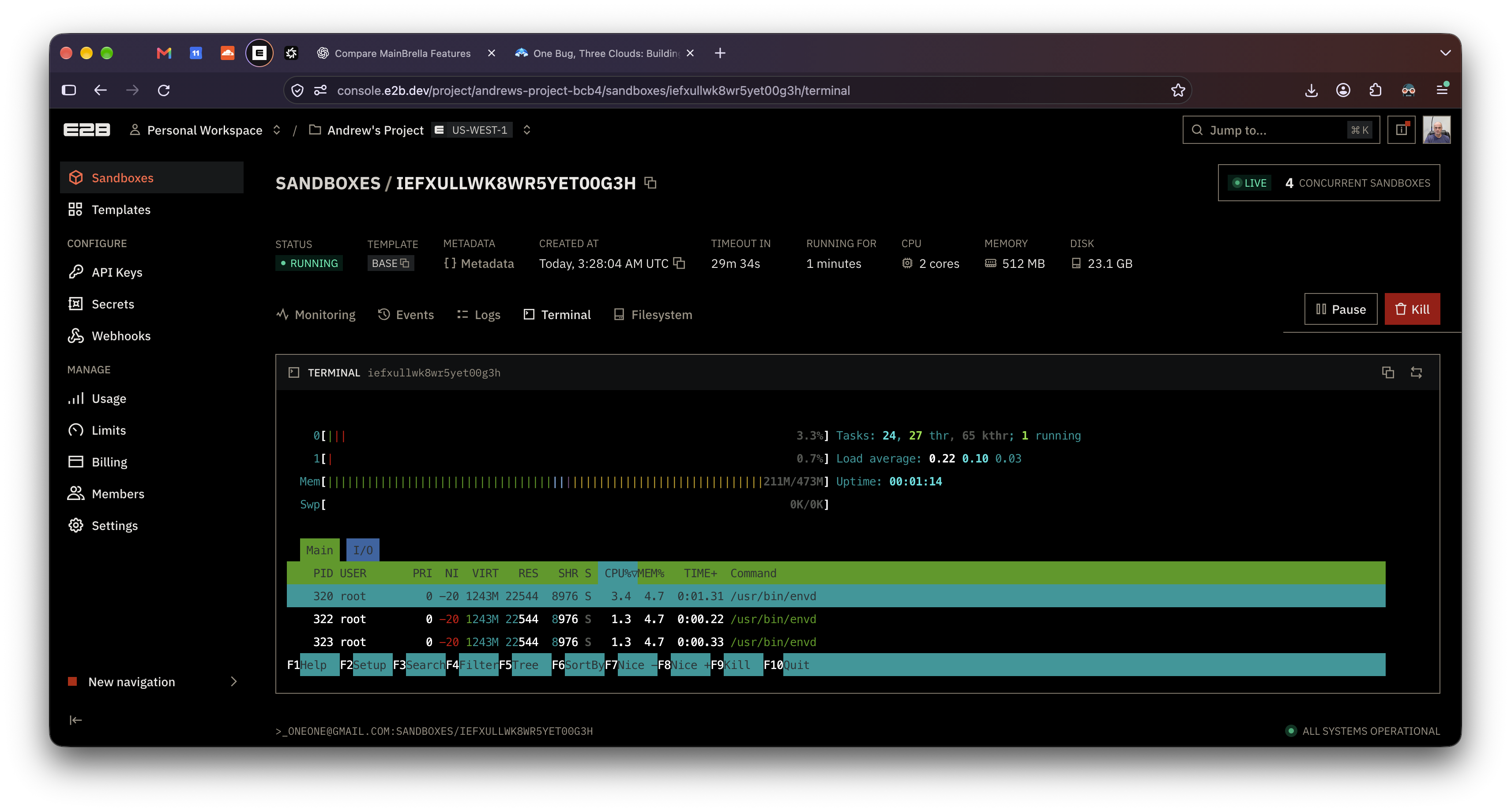
htop. You can inspect the processes on the computer the automation is using. Wide screenshots can be scrolled on a phone.The language model can run elsewhere. An agent program sends a command to this machine, gets back its output, and gives that output to the model for its next decision. A test failure can lead to another edit and another run. The model doesn’t need to predict what npm test would say when it can ask a computer to execute it.
Files persist between those commands. Install a package, change a source file, or generate a report, and the next command can use the result. The dashboard lets a human inspect the same filesystem.
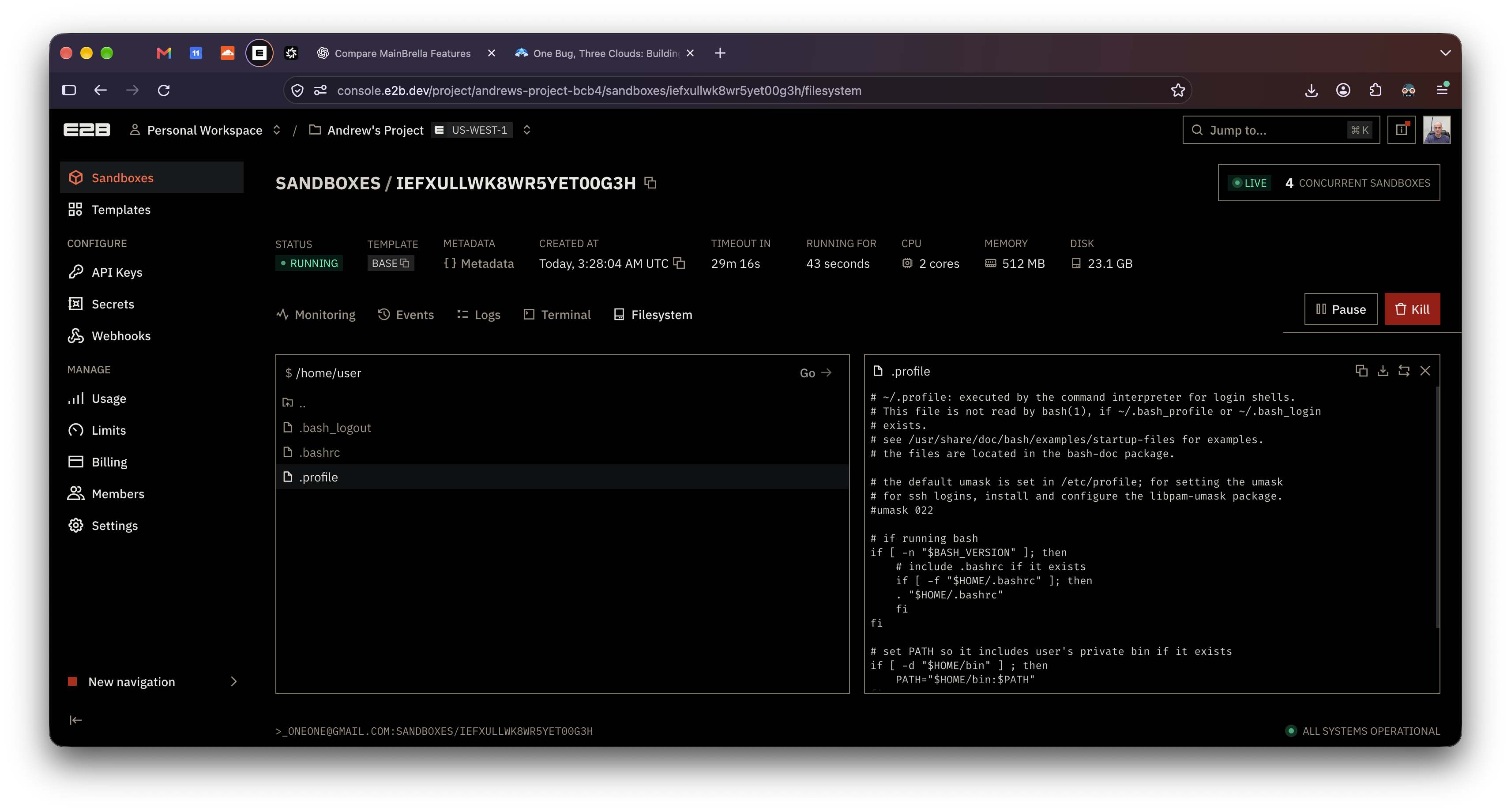
.profile selected. Files on this remote computer can be inspected as well as changed by commands.“Sandbox” describes the separate environment. Underneath, it might be a Linux container or a small virtual machine; E2B uses VMs, while Daytona offers several kinds. You don’t have to learn their internals to understand the useful promise: this task gets its own files and processes.
The app has to work after reload
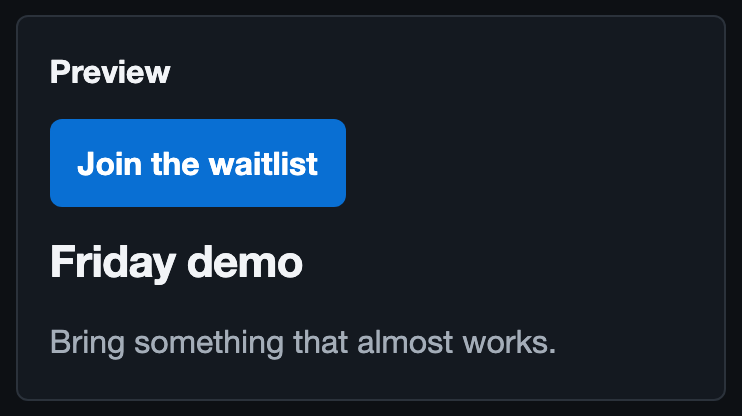
We made a tiny editor with a deliberately nasty bug. Move “Join the waitlist” to the top, press Save, and the preview looks fine. Reload, and the button disappears. The app said “Saved.” It was telling the truth about writing something, which is an unhelpful level of honesty.
After Save
After reload
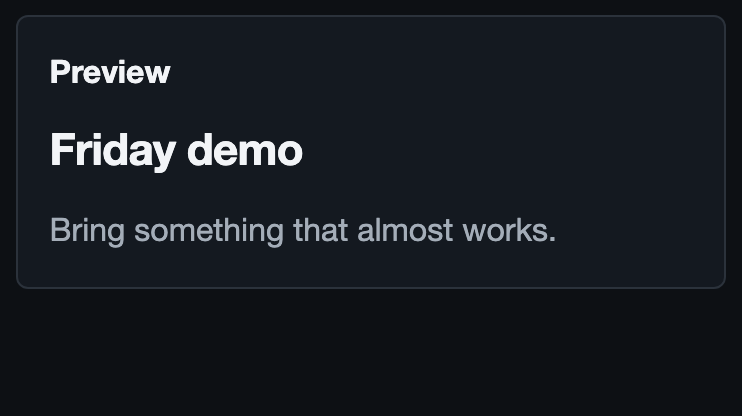
You can try the bug yourself. The save routine drops the first block because its filter treats position zero as false. A plausible-looking repair redraws the page after Save. The good repair saves every block. Both can look successful in a demo that stops before reload.
A server running inside a remote computer also needs a route to the browser. A preview URL gives you that route. Now a person or a browser test can open the app, click Save, and reload. In our experiment, the browser tests ran outside the sandboxes, so a patch couldn’t improve its score by changing the tests.
Give each attempt its own computer
Suppose you want to try two repairs. You could keep editing one directory, undo each attempt, and hope you restored everything. A sandbox gives you another option: prepare the app once, then make independent copies of the prepared computer.
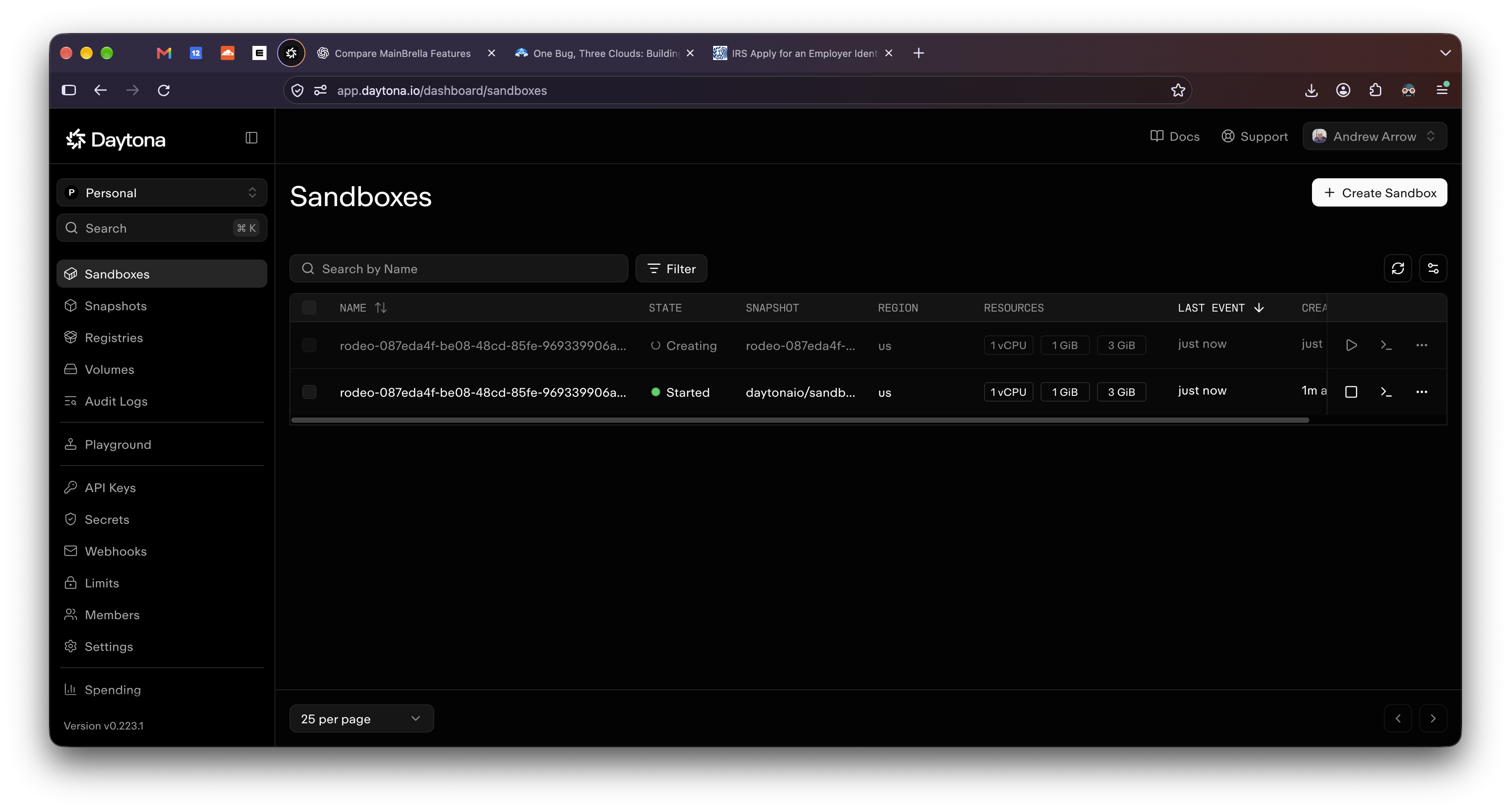
That copies more than a Git checkout. It can bring the installed dependencies and setup files along too. Here’s Daytona creating a new sandbox from a saved snapshot while another sandbox is running.
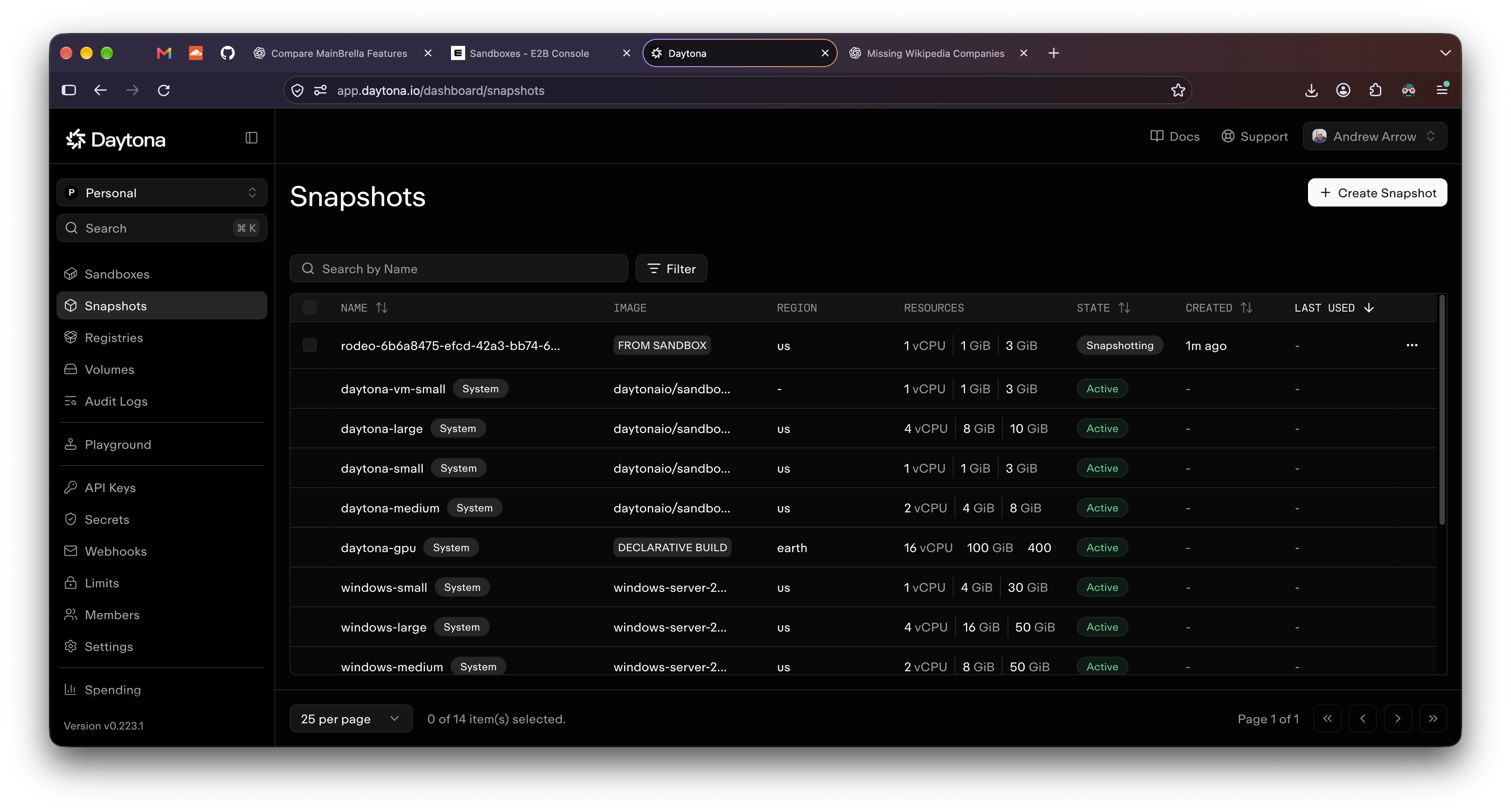
A snapshot is a saved starting point for another machine. You can see it separately from the running sandboxes in Daytona’s dashboard.
We prepared the same editor on all three services, then made three copies: unchanged, correctly patched, and misleadingly patched. We supplied the patches ourselves. This checked the workspaces and the tests, rather than an AI’s ability to invent a repair.
All nine copies kept the source files and installed dependencies. Each could be changed without changing the others. All three providers produced the expected editor results:
| Attempt | Result |
|---|---|
| Leave it broken | The first block disappears |
| Fix the save routine | Every block survives |
| Make it look fixed | The first block still disappears |
This is the part I want from an agent’s computer: let it try an idea without changing the starting environment. An unsuccessful attempt can be discarded while the starting point remains available.
Can you copy unfinished work?
The editor’s document lived in the browser, and our test could recreate it. Restarting its server was fine. But a running program can hold something you can’t recover by checking out its files.
For a second experiment, we gave a worker five jobs and paused it before processing them. The jobs lived only in memory. Two were free items that still needed receipts; the broken program skipped them. We wanted three attempts to process independent copies of those same five accepted jobs.
E2B’s live fork preserved the running worker and its queue in each copy. The unchanged processor produced three receipts, the good patch produced five, and the fake patch produced none. After those copies finished, the original still had all five jobs waiting.

The Mainbrella saved-workspace and Daytona container-snapshot paths copied the files, then started fresh workers. Their queues were empty. Even the correct patch had no original jobs left to process. Restarting E2B’s worker also lost the queue: saving memory and restarting a program do different things.
Mainbrella can restore the app and start its server automatically. That still starts a fresh process. Daytona also offers VM memory snapshots; we tested its container snapshots here.
We deliberately gave this worker a pause point where a changed processor file could be loaded without restarting. It’s a small demonstration, not a way to patch every running program. In a production system, a durable queue could make the jobs recoverable after a restart. Here, copying memory let us experiment with work already in progress.
What happens while the agent is working?
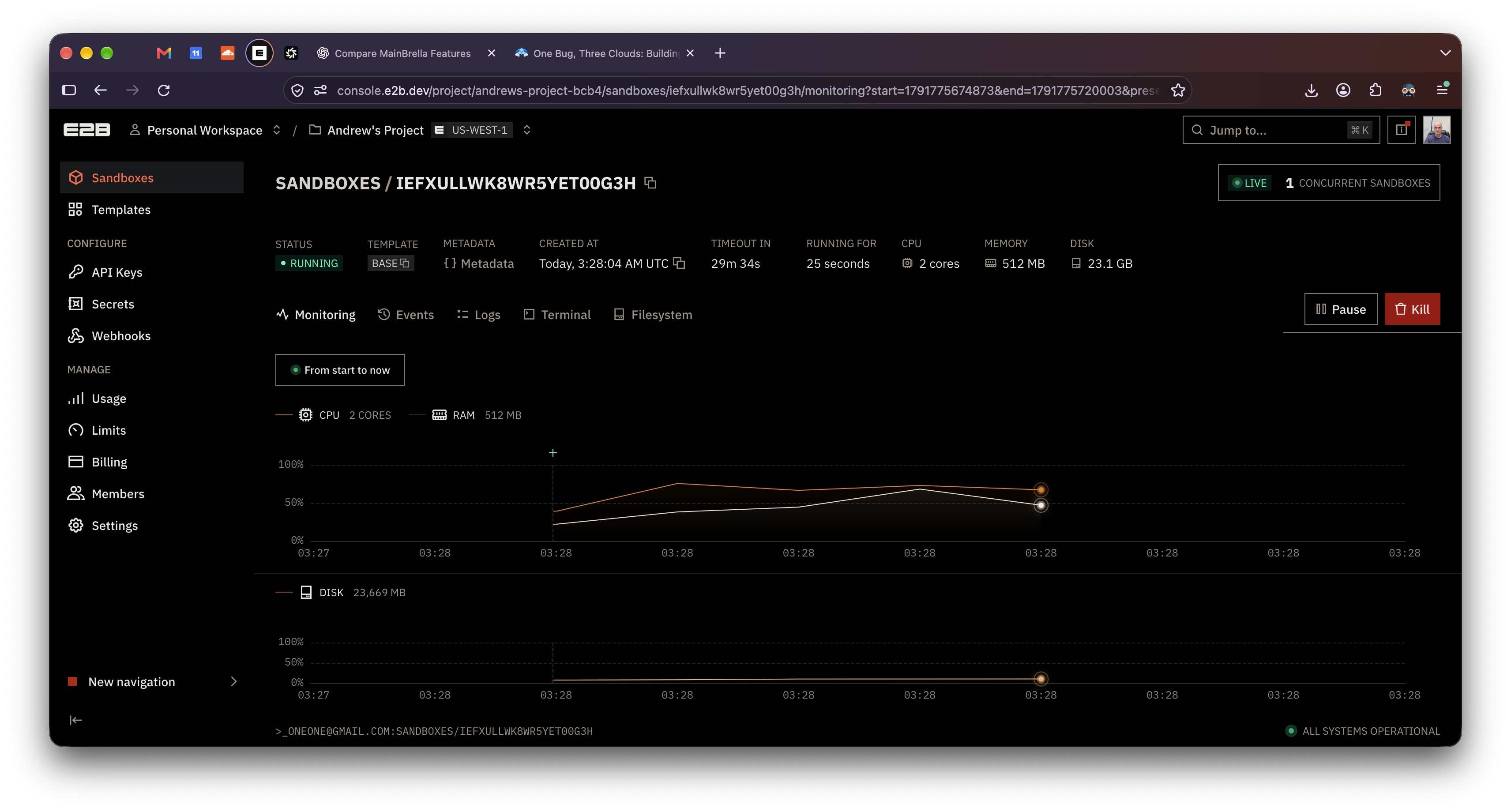
An agent that can run commands can also leave a process spinning or start a server that uses too much memory. The operator needs to see the machine as well as the conversation. E2B’s monitoring view shows CPU and RAM use over time.
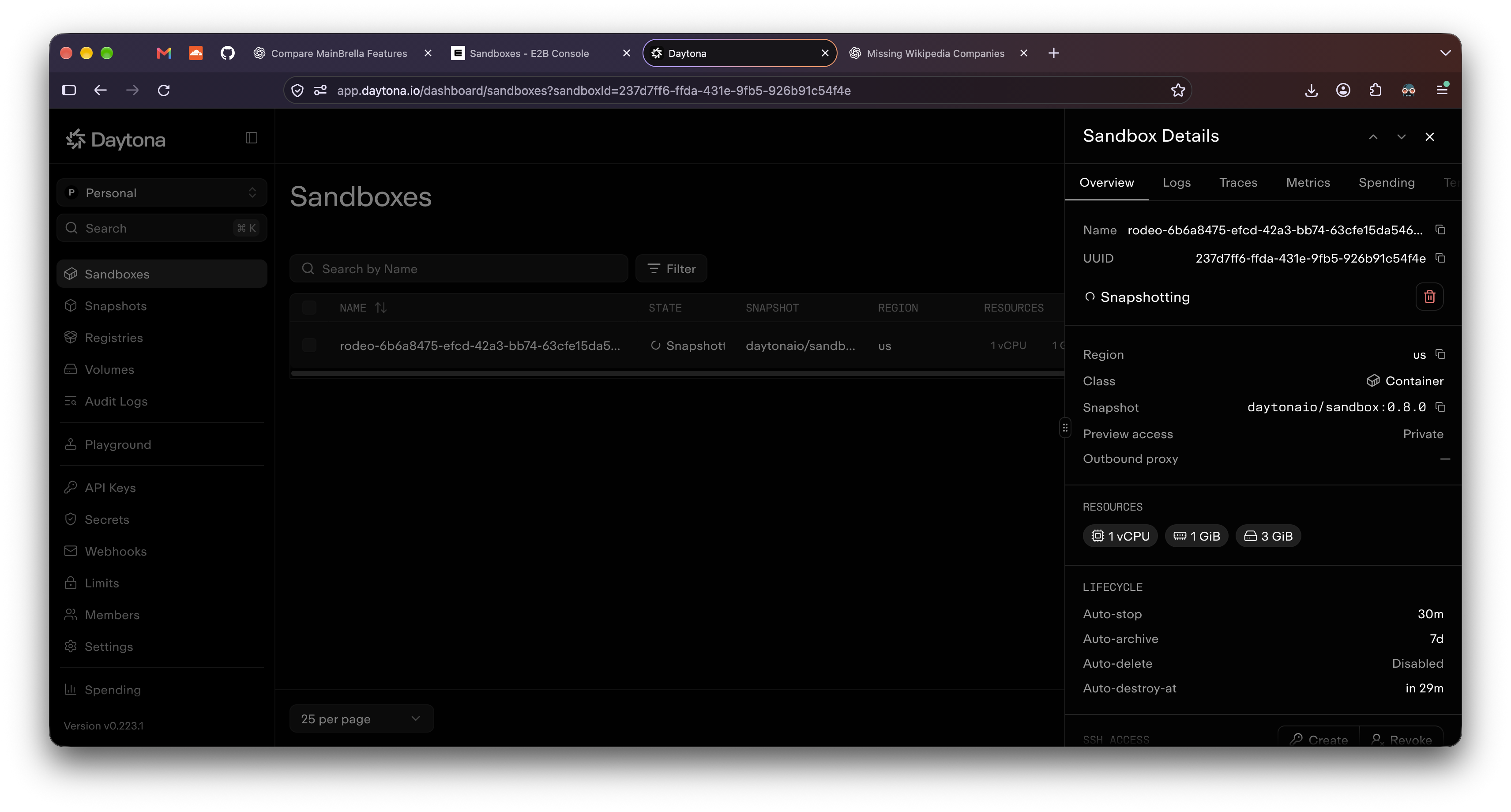
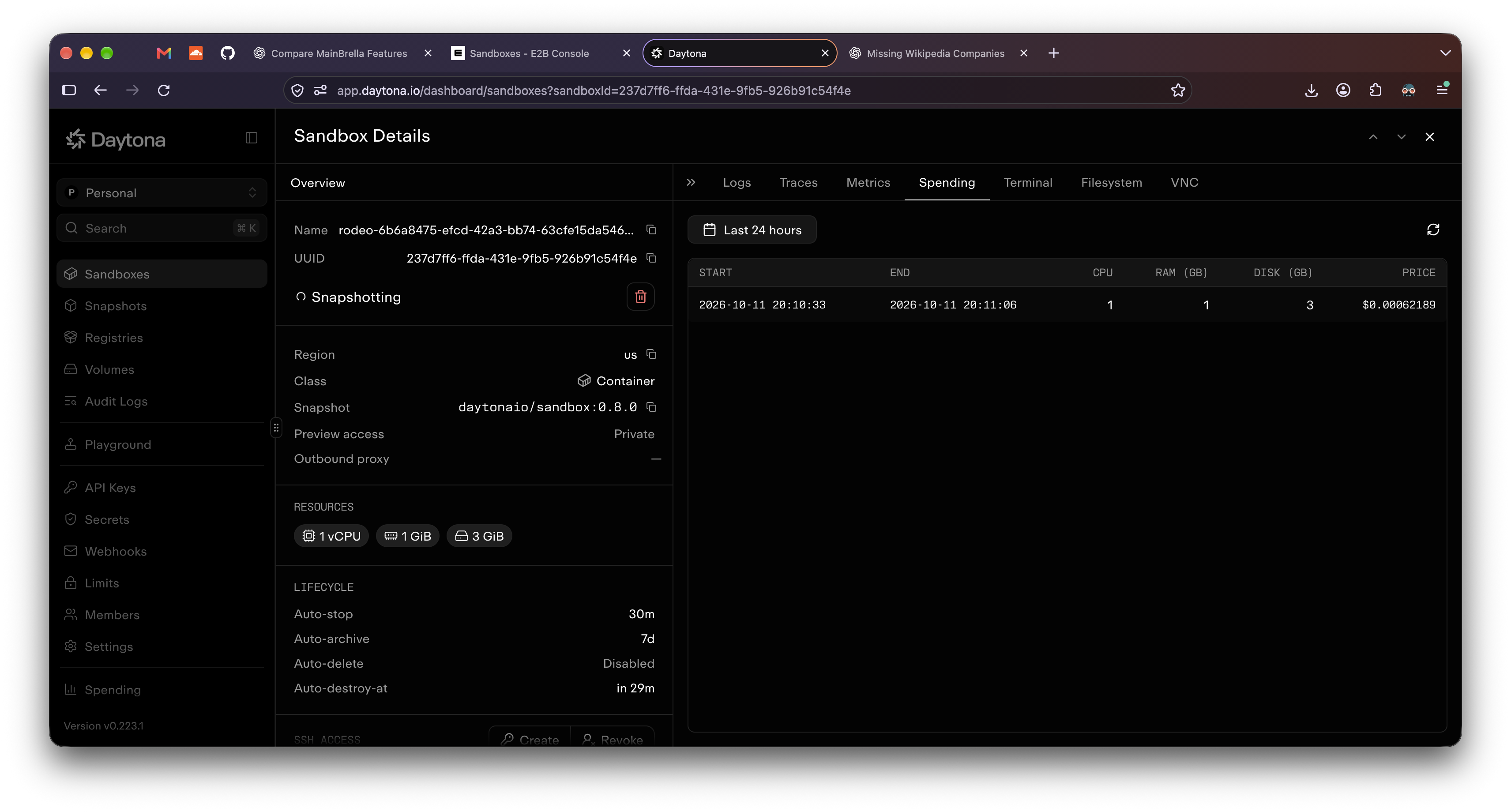
You also choose how much computer the task gets and when it stops. This Daytona container had one CPU, 1 GiB of memory, and a private preview, with lifecycle settings visible alongside them.
The computer’s lifetime and the client’s connection are separate. In our checks, all three services could recover a command’s output after its first client detached. We tested a short, eight-second job; this wasn’t a test of leaving an agent running overnight.
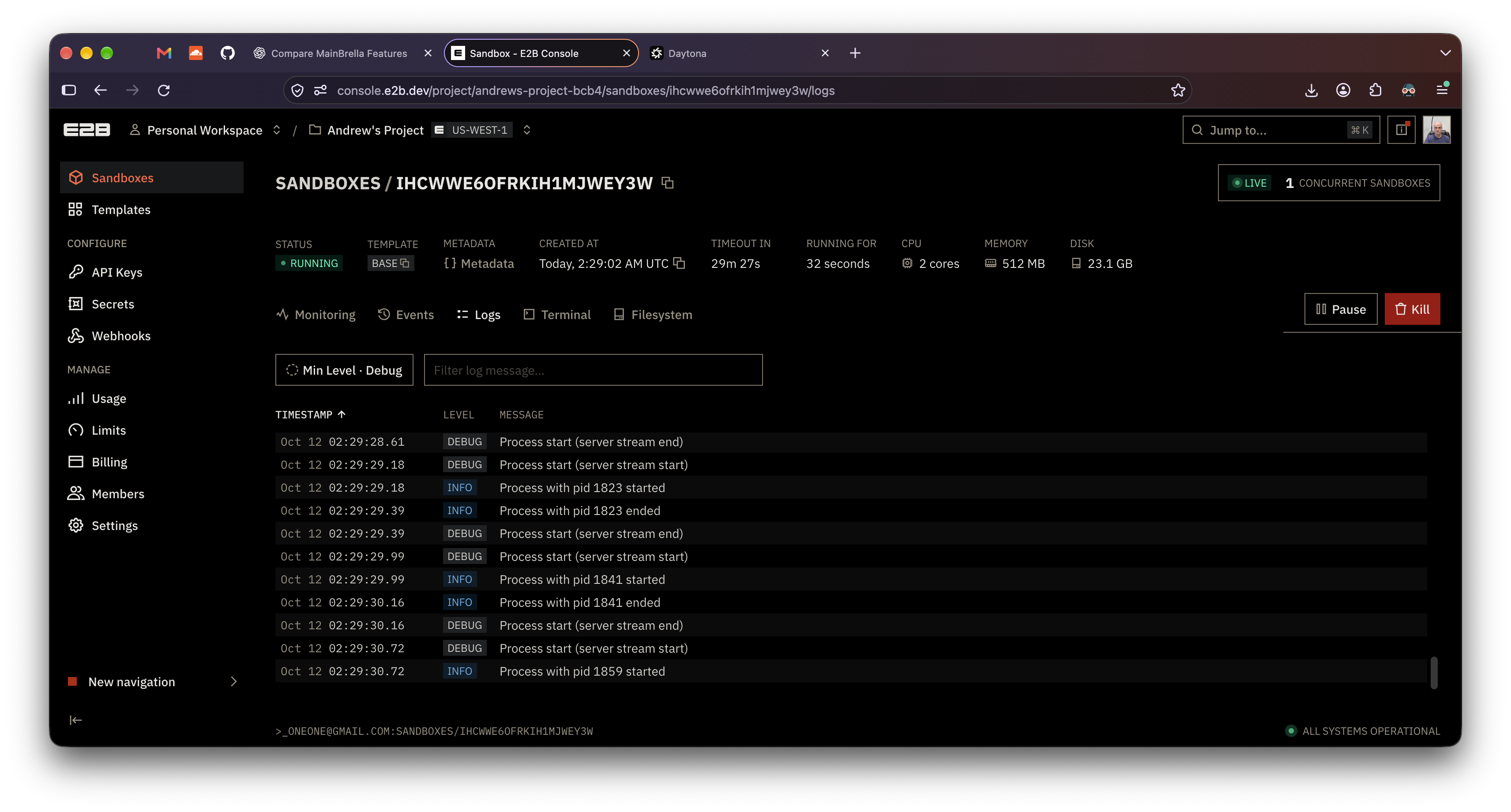
A dashboard gives you another way to follow the machine. This E2B log shows process starts and exits, including whether commands are still running.
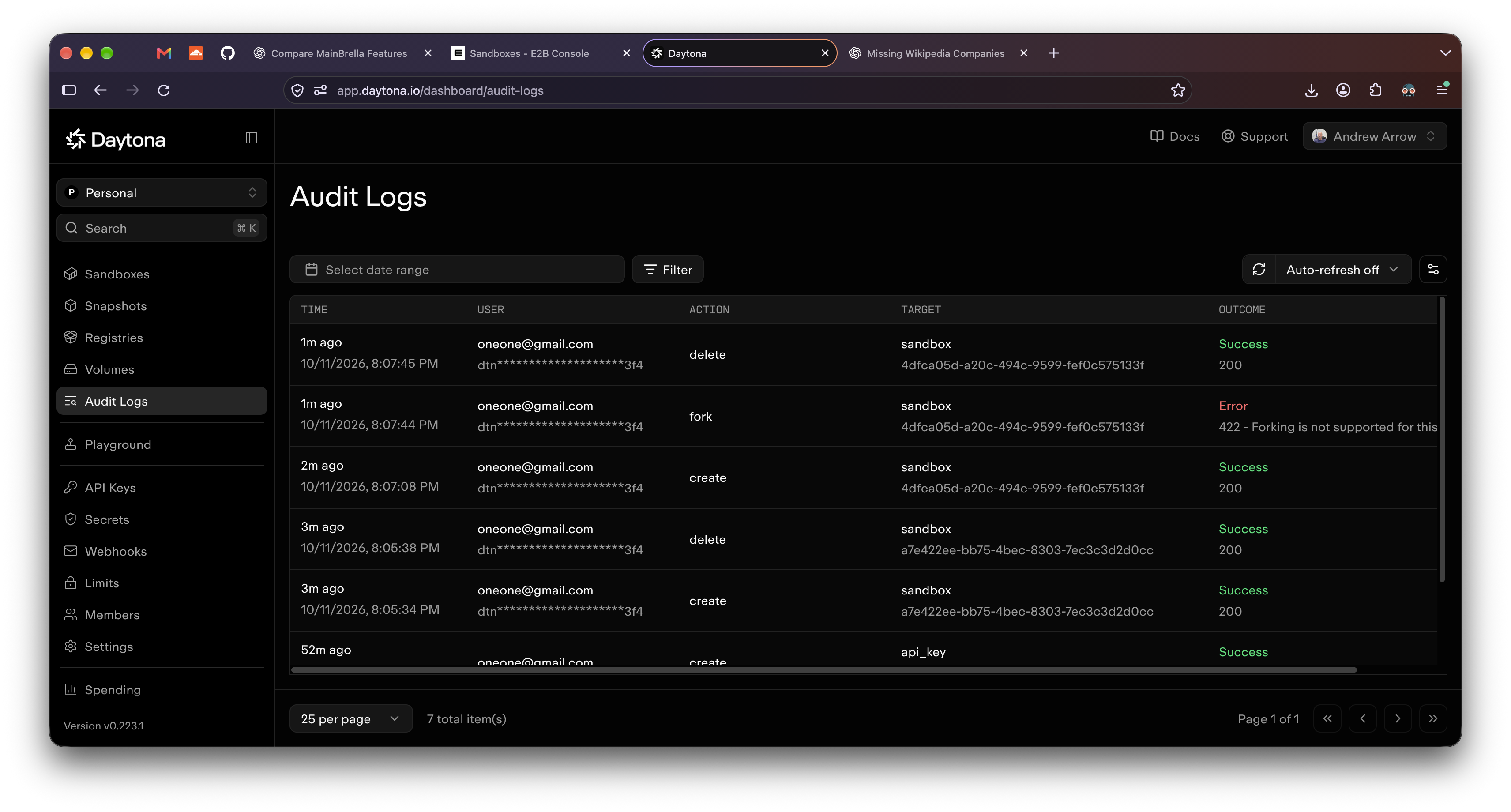
Activity logs help explain an automation’s mess. This Daytona run recorded successful creates and deletes alongside a fork request the selected sandbox type didn’t support.
And the runtime costs money. Daytona’s spending view includes this 33-second interval at $0.00062189. That’s one recorded interval on one configuration, so it doesn’t tell us the cost of a complete repair or which provider is cheaper.
Saving the result and deleting the temporary machine are part of finishing the task. Our runs checked that their test resources disappeared from each provider’s API inventory. The longer experiment report follows recovery and cleanup in detail.
Why rent the computer?
You can do much of this with your own Docker setup or a VM. The service earns its place by making those computers available to a program: create one, send commands, inspect files, reach a running app, make another copy, and clean up.
The sandbox supplies the place to try. You still need a check that can tell a good answer from a convincing one. In our editor, that check was wonderfully ordinary: reload the page and see whether the button is still there.